This blog post provides the heads-up about planned tablet input changes that are brewing for Plasma 6.3. KWin provides support for the tablet input protocol, but things are different on the client side. Some apps support it, some do not. If an application supports the tablet input protocol, great, it will receive tablet input events as is. On the other hand, if the application does not support the tablet input protocol, then KWin will fake tablet input as pointer input. In Plasma 6.3, KWin will stop doing that and I think that we should briefly talk what led us to such a decision and what impact it will have.
Originally, when the tablet input protocol support had landed in KWin, there were still pretty few applications and toolkits that supported it. Emulating tablet input was a fairly reasonable decision, otherwise you would have likely not been able to use tablet in the Plasma Wayland session at all. As time went by, more and more clients gained native support for the tablet protocol. Unfortunately, in meanwhile, we had also started noticing various issues with tablet emulation.
So, what’s the reasonable thing to do about it? Fix the bugs of course. And we did. But there is still a set of issues that cannot be addressed without bringing more complexity in already too complex code that we are struggling to keep afloat. Enough is enough.
Q: What’s new in 6.3?
A: Starting since 6.3, tablet input emulation will be deprecated and disabled by default. Note that you can enable it back by setting the KWIN_WAYLAND_EMULATE_TABLET=1 environment variable.
Q: When will tablet input emulation be dropped?
A: There is no concrete milestone at the moment.
Q: What does it mean to you? (as a user)
A: Hopefully, nothing. The major toolkits such as GTK, Qt, and SDL already provide support for the tablet protocol, so does Xwayland. So, you should be able to use tablet without any issues in X11 applications or Wayland native applications that use the aforementioned toolkits. Chromium/Electron still does not provide native support for tablet input on Wayland, but it’s also worth noting that most of those applications run through Xwayland by default unless the user sets some command-line arguments.
If your favorite application does not work with tablets, please tell it to the developers of that application so they know that there’s demand for such an operation mode.
Q: What should I do? (as a toolkit developer)
A: Please add support for tablets! If your toolkit already supports the tablet input protocol, wonderful, no work to do. \o/
Q: Is KWin alone by stopping emulating tablet input?
A: No, it is not. Mutter (the Wayland compositor in GNOME Shell) doesn’t emulate tablet input either.
Closing words
Deprecating tablet emulation is disappointing but the options that we have are not great either. It’s either bring in more complexity in order to fix the existing issues (plus even more code to ensure that the pointer focus is managed correctly when using both pointer and tablet) into an already too complex codebase or just do nothing special about applications that don’t opt in into tablet input. Hopefully, the remaining applications and toolkits that still miss tablet support add it in the near future. If you have more thoughts about it, please reach out to us at our matrix room.
Since the dawn of the times, the only way to implement any effect that has fancy user interface used to be in C++. It would be rather an understatement to say that the C++ API is difficult to use or get it right so there are no glitches. On the other hand, it would be really nice to be able to implement dashboard-like effects while not compromise on code simplicity and maintainability, especially given the rise of popularity of overview effects a few years ago, which indicated that there is demand for such effects.
In order solve that problem, we started looking for some options and the most obvious one was QtQuick. It’s a quite powerful framework and it’s already used extensively in Plasma. So, in Plasma 5.24, we introduced basic support for implementing kwin effects written in QML and even added a new overview effect. Unfortunately, if you wanted to implement a QtQuick-based effect yourself, you would still have to write a bit of C++ glue yourself. This is not great because effects that use C++ are a distribution nightmare. They can’t be just uploaded to the KDE Store and then installed by clicking “Get New Effects…”. Furthermore, libkwin is a fast moving target with lots of ABI and API incompatible changes in every release. That’s not good if you’re an effect developer because it means you will need to invest a bit of time after every plasma release to port the effects to the new APIs or at least rebuild the effects to resolve ABI incompatibilities.
This has been changed in Plasma 6.0.
In Plasma 6, we’ve had the opportunity to address that pesky problem of requiring some C++ code and also improve the declarative effect API after learning some lessons while working on the overview and other effects. So, enough of history and let’s jump to the good stuff, shall we? 🙂
Project Structure
Declarative effects require some particular project structure that we need to learn first before writing any code
The package directory is a toplevel directory, it should contain two things: a metadata.json file and a contents directory. The metadata.json file contains information about the name of the effect, what API it uses, the author, etc.
The contents directory contains the rest of QML code, config files, assets, etc. Keep in mind that ui/main.qml is a “magical” file, it acts as an entry point, every effect must have it.
In order to install the effect and make it visible in Desktop Effects settings, you will need to run the following command
This is quite a lot to memorize. That’s why kwin provides an example qtquick effect that you can grab, tweak some metadata and you’re good to go. You can find the example project at https://invent.kde.org/plasma/kwin/-/tree/master/examples/quick-effect?ref_type=heads. Note that the example project also contains a CMakeLists.txt file, which provides an alternative way to install the effect by the means of cmake, i.e. make install or cmake --install builddir.
Hello World
Let’s start with an effect that simply shows a hello world message on the screen:
import QtQuick is needed to use basic QtQuick components such as Rectangle. import org.kde.kwin imports kwin specific components.
The SceneEffect is a special type that every declarative effect must use. Its delegate property specifies the content for every screen. In this case, it’s a blue rectangle with a “Hello World!” label in the center.
The ShortcutHandler is a helper that’s used to register global shortcuts. ShortcutHandler.name is the key of the global shortcut, it’s going to be used to store the shortcut in the config and other similar purposes. ShortcutHandler.text is a human readable description of the global shortcut, it’s going to be visible in the Shortcuts settings.
The ScreenEdgeHandler allows to reserve a screen edge. When the pointer hits that screen edge, some code can be executed by listening to the activated signal.
The PinchGestureHandler and SwipeGestureHandler allow to execute some code when the user makes a pinch or a swipe gesture, respectively.
effect.visible = !effect.visible toggles the visibility of the effect. When effect.visible is true, the effect is active and visible on the screen; otherwise it’s hidden. You need to set effect.visible to true in order to show the effect.
If you press Meta+H or make a pinch gesture or move the pointer to the top screen edge, you’re going to see something like this
Note that there are no windows visible anymore, it is the responsibility of the effect to decide what should be displayed on the screen now.
Displaying Windows
Being able to display text is great, but it’s not useful. Usually, effects need to display some windows, so let’s display the active window
The change is quite simple. Instead of displaying a Text component, there’s a WindowThumbnail component now. The WindowThumbnail type is provided by the org.kde.kwin module. WindowThumbnail.client indicates what window the thumbnail item should display.
Input
Input processing contains no kwin specific APIs. TapHandler, MouseArea, Keys and other stuff available in QtQuick should just work. For example, let’s implement an effect that arranges windows in a grid and if somebody middle clicks a window, it will be closed
The code looks pretty straightforward except maybe the model of the GridView. WindowModel is a helper provided by org.kde.kwin module that lists all the windows. It can be passed to various views, Repeater, and so on.
The result can be seen here
Delegates are Per Screen
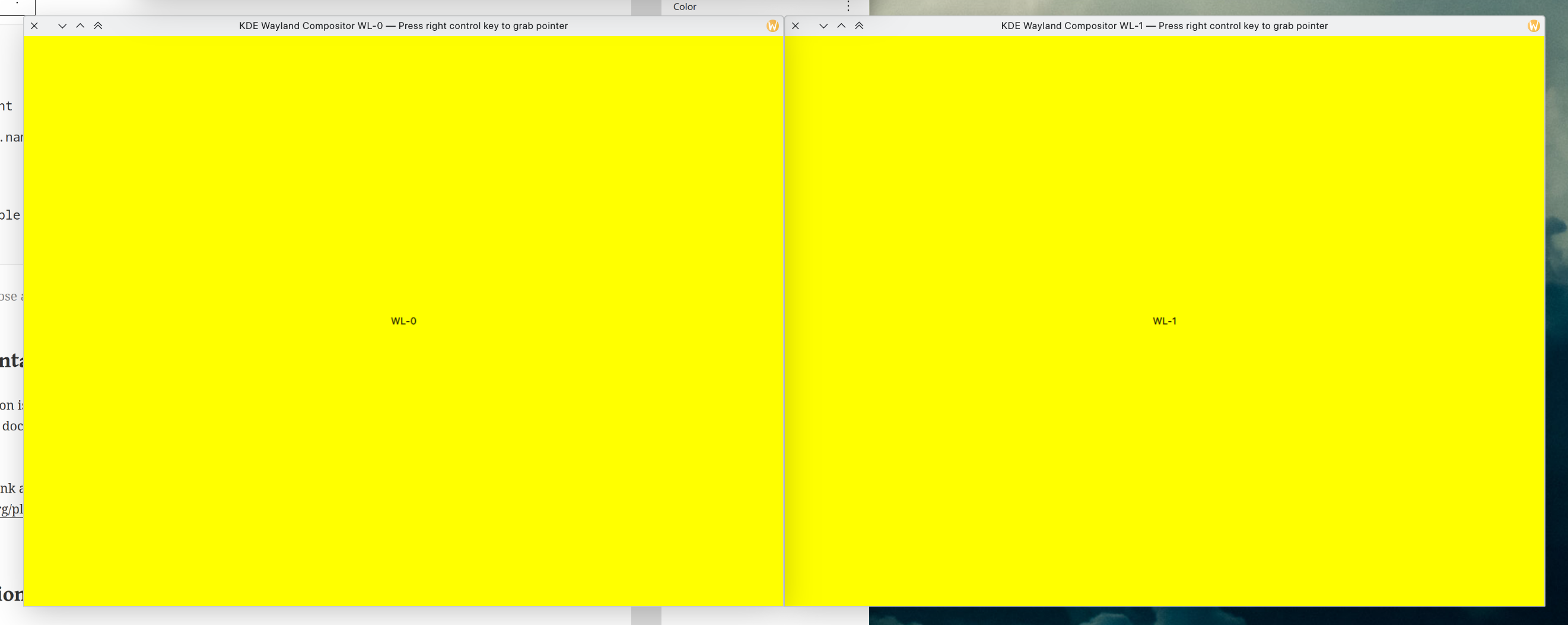
One thing to keep in mind is that the delegates are instantiated per screen. For example,
    delegate: Rectangle {
        color: "yellow"

        Text {
            anchors.centerIn: parent
            color: "black"
            text: SceneView.screen.name
        }
    }
When you activate the effect on a setup with several outputs, each output will be filled with yellow color and the output name in the center
Usually, the output is irrelevant, but if you need to know what output particular delegate is displayed on, you could use the SceneView.screen attached property.
Configuration
As your effect grows, you will probably face the need to provide an option or two. Let’s say that we want the background color in our hello world effect to be configurable. How do we achieve that? The first step, is to add a main.xml file in package/contents/config directory, i.e.
In our case, only one option is needed: BackgroundColor, which has Color type and #ff00ff default value. You can refer to the KConfigXT documentation to learn more what other entry types are supported.
The next step is to actually use the BackgroundColor option
effect.configuration is a map object that contains all the options listed in the main.xml.
Now, if you toggle the hello world effect, you’re going to see
There are a few more thing left to do though. If you navigate to Desktop Effects settings, you’re not going a configure button next to the hello world effect
Besides providing a main.xml file, the effect also needs to provide a config.ui file containing a configuration ui
The config.ui file is a regular Qt Designer UI file. The only special thing about it is that the controls that represent options should have special name format: kcfg_ + OptionName. For example, kcfg_BackgroundColor
The last final piece in order to expose the configuration ui is to add the following line in the metadata.json file
"X-KDE-ConfigModule": "kcm_kwin4_genericscripted"
With all of that, the effect is finally displayed as configurable in the system settings and the background color can be changed
Sharing Your Effect With Other People
The preferred method to distribute third party extensions is via the KDE Store. Both JS and QML effects can be uploaded to the same “KWin Effects” category.
Documentation and Other Useful Resources
Documentation is still something that needs a lot of work (and writing it is no fun 🙁 ). KWin scripting API documentation can be found here https://develop.kde.org/docs/plasma/kwin/api/.
If you need to pack or arrange windows like how the overview effect does, you could use the WindowHeap component from org.kde.kwin.private.effects module. BUT you need to keep in mind that that helper is private and has no stable API yet, so use it on your own risk (or copy paste the relevant code in kwin). Eventually, the WindowHeap will be stabilized once we are confident about its API.
I hope that some people find this quick introduction to QML-based effects in KWin useful. Despite being a couple years old, declarative effects can be still considered being in the infancy stage and there’s a lot of untapped potential in them yet. The QML effect API is not perfect, and that’s why we are interested in feedback from third party extension developers. If you have some questions or feedback, feel free to reach out us at https://webchat.kde.org/#/room/#kwin:kde.org. Happy hacking!
Wayland has a unique way to let clients specify the contents of the cursor. After receiving a wl_pointer.enter event, the client must call wl_pointer.set_cursor request
    <request name="set_cursor">
      <arg name="serial" type="uint" summary="serial number of the enter event"/>
      <arg name="surface" type="object" interface="wl_surface" allow-null="true"
	   summary="pointer surface"/>
      <arg name="hotspot_x" type="int" summary="surface-local x coordinate"/>
      <arg name="hotspot_y" type="int" summary="surface-local y coordinate"/>
    </request>
The wl_pointer.set_cursor request takes an optional wl_surface object that represents the actual contents of the cursor. That’s it, the wl_surface interface is used both by windows and cursors! It opens a whole lot of features that you could use with the cursor, for example use the wp_viewport protocol for fractional scaling or create cursor surface trees using the wl_subcompositor interface. On the other hand, many compositors view the cursor as a simple image. So, let’s see how we improved kwin in this regard.
Cursor source
Currently (as of 5.26.x), kwin assumes that the cursor can show only a QImage. It’s okay for simple cases, but it falls apart once we need to show a wl_surface, e.g. we will hit problems with getting a QImage from a linux dmabuf client buffer.
So the first thing that we need to do in order to move anywhere forward is to choose proper abstractions to represent what is actually in the cursor. For example, if the cursor hovers a window, it obviously needs to present what the corresponding wl_surface contains. But sometimes the mouse cursor is not above any window, for example if the pointer is above a server-side decoration. Server-side decoration can be considered part of the window, but we cannot use client’s wl_surface anymore, the compositor may choose to show a different cursor, which is a QImage.
The CursorSource class is the base class for all other “source” classes that can be attached to the cursor. It contains generic properties, e.g. the hotspot, and it also contains the CursorSource::changed() signal to tell the world when the image has changed. CursorSource::image() exists for compatibility and to make the transition to new abstractions easier.
Sometimes, we need to show a static image in the cursor, so let’s add an ImageCursorSource to serve that purpose
class ImageCursorSource : public CursorSource
{
public:
    explicit ImageCursorSource(QObject *parent = nullptr);

public Q_SLOTS:
    void update(const QImage &image, const QPoint &hotspot);
};
On the other hand, some cursors are not static. For example, the loading cursor usually contains some animation, e.g. spinning wheel
The ShapeCursorSource class represents a cursor shape from an Xcursor theme. It can be used to show both animated and static cursors. If the given cursor shape is animated, i.e. it has more than one sprite, ShapeCursorSource will start a timer with the timeout as indicated by the cursor theme. When the timer expires, ShapeCursorSource will switch to the next sprite and emit the CursorSource::changed() signal. If it’s the last sprite, it will wrap around to the first sprite.
And last but not least, we need something to represent wl_surface attached to the cursor
class SurfaceCursorSource : public CursorSource
{
public:
    explicit SurfaceCursorSource(QObject *parent = nullptr);

    KWaylandServer::SurfaceInterface *surface() const;

public Q_SLOTS:
    void update(KWaylandServer::SurfaceInterface *surface, const QPoint &hotspot);
};
ImageCursorSource, ShapeCursorSource, and SurfaceCursorSource are the main types that indicate what the cursor shows.
Scene
The CursorSource classes act as data sources, they don’t actually paint anything on the screen. It’s the responsibility of the scene. I’ve already written a little bit about the scene abstraction in kwin, I recommend you to read my earlier blog post about it https://blog.vladzahorodnii.com/2021/04/12/scene-items-in-kwin/
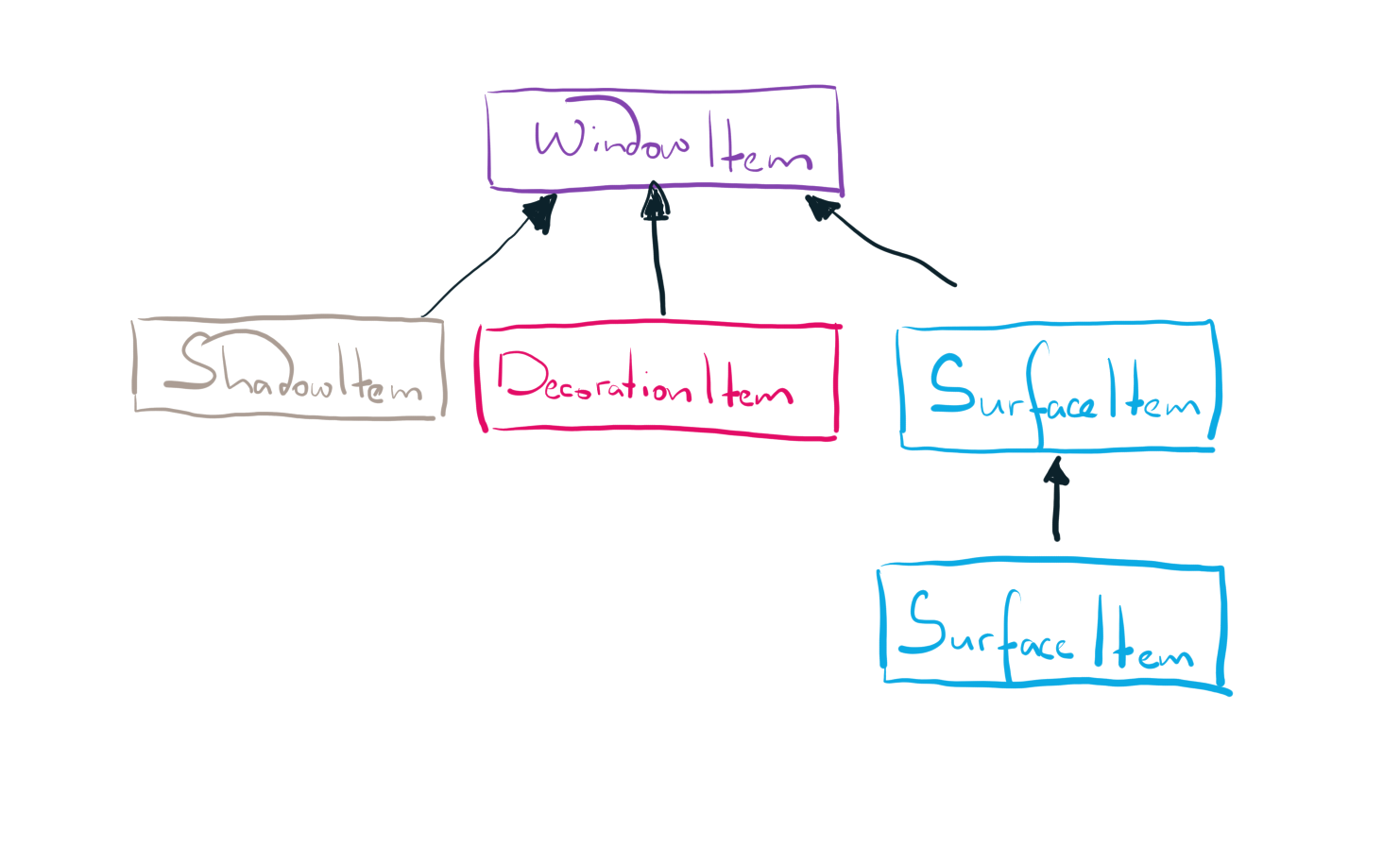
But as a quick recap: kwin breaks up a window in smaller building blocks called items. The DecorationItem corresponds to the server-side decoration if there’s one. The ShadowItem is a server-side drop shadow, for example a drop shadow cast by the decoration or the panel. The SurfaceItem represents the actual window contents. That’s the same strategy that we will follow here. The cursor will be broken in smaller pieces.
If we look closely at our cursor sources, the painting code should handle only two cases – paint a QImage and paint an arbitrary wl_surface tree. The wl_surface case is already taken care by SurfaceItem \o/, so we just need a new type of item to present an image in the scene graph, e.g. ImageItem
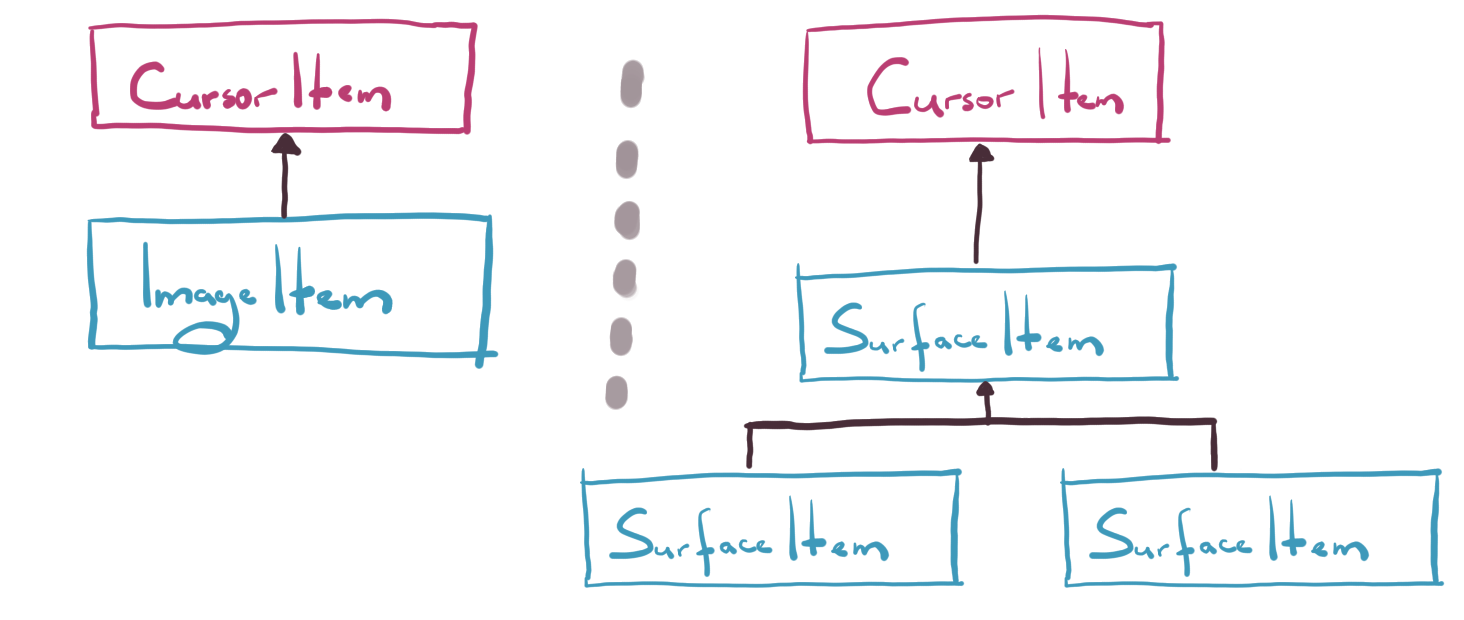
The CursorItem type ties both cases together. It monitors what source is attached to the cursor and creates either a SurfaceItem or an ImageItem according to the type of the cursor source
If a SurfaceCursorSource is attached to the cursor, the CursorItem is going to destroy its child ImageItem (if there’s one) and create a SurfaceItem tree
If an ImageCursorSource or a ShapeCursorSource is attached to the cursor, the CursorItem is going to destroy its child SurfaceItem (if there’s one) and create an ImageItem child item
Note that SurfaceItems are rendered the same way regardless of their role.
With all of this, kwin can easily handle simple cases such as displaying an image in the cursor and more esoteric things that you can do with a wl_surface.
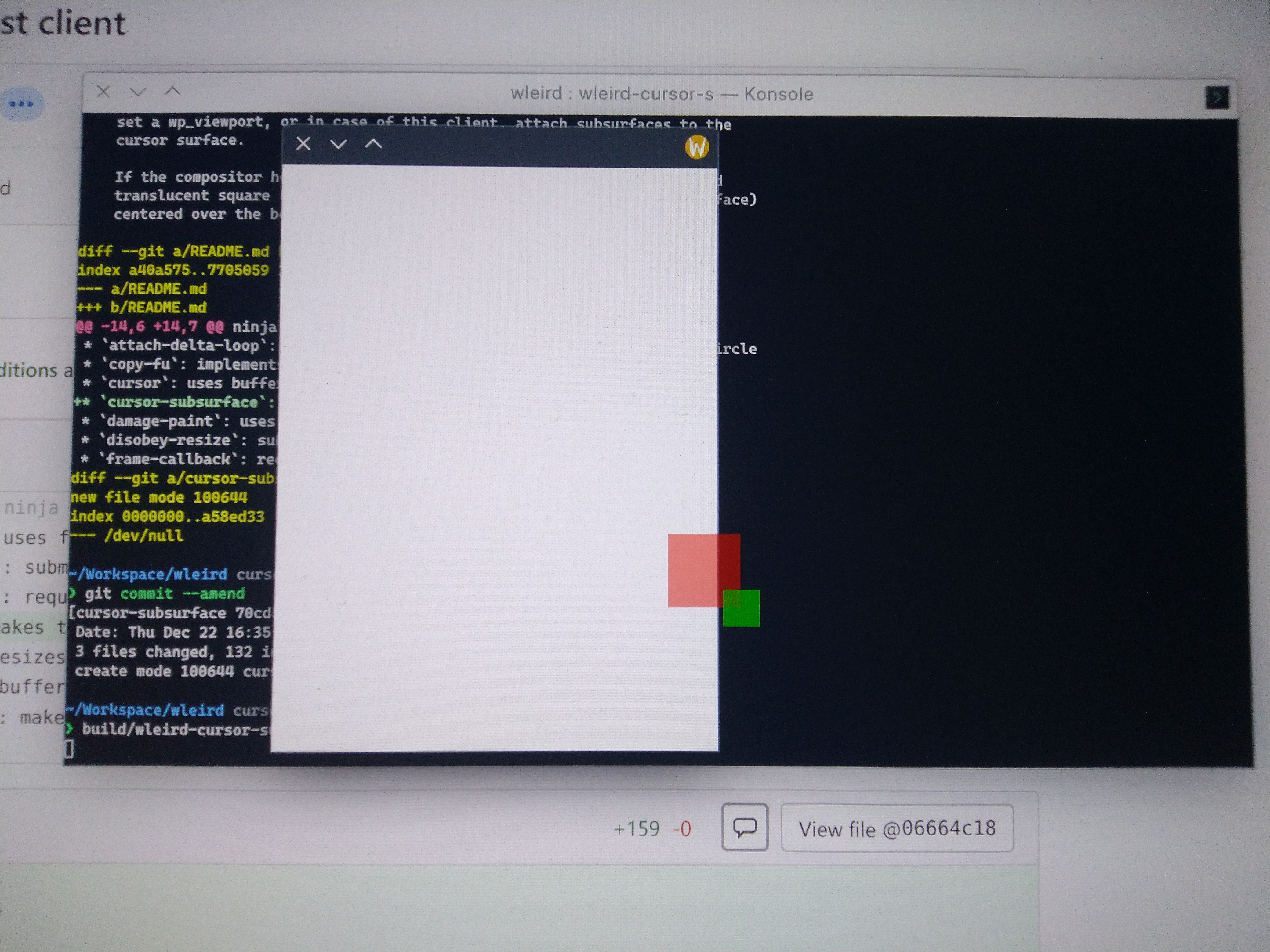
Red square is the cursor surface, the green square is its subsurface. No idea why you would want to do this, but kwin should handle this fine now 🙂
Cursor layer
The last thing that’s needed to make cursor handling perfect is putting the cursor on its own hardware plane. Imagine that you move the mouse cursor. Ideally, you should not repaint any windows below the cursor, only update the position of the cursor. Unless the windows need to repaint their content because of new pointer position, e.g. add or remove button outlines, etc. It can be achieved by painting the cursor in its own plane.
KWin already attempts to put the cursor on hardware planes, but we would like to clean things up and unify cursor and overlay planes. It is still work in progress. TBA.
Summary
The new cursor design is more powerful and should make it easier to add new fancy features. For example, it would be amazing if you could wire the velocity of the cursor to its scale so you could shake the pointer in order to find the cursor more easily. The new design also fixes longstanding limitations that prevented kwin from displaying cursors rendered by OpenGL or Vulkan.
This is going to be a rather short blog post, but I think it’s still worth mentioning. Since 5.26, kwin will support only one way of setting up X screens – Xinerama, multi-head won’t be supported anymore. However, despite how “setup-breaking” it may sound, this will most likely not affect you as you probably already use Xinerama.
Before diving any deeper, it’s worth providing you some background. On X11, there are several ways how you could configure your desktop environment to run with multiple monitors – multi-head and Xinerama.
Multi-head is an old school way to run multiple monitors. Basically, with that mode, there’s an X screen per monitor. In Xinerama mode, there’s only one virtual X screen per all outputs. Both modes have their advantages and disadvantages, for example you can’t freely move windows between screens when using multi-head, etc. Xinerama is younger than multi-head and it provides the most user friendly workflow on multi-screen setups, so it’s usually enabled by default in all Linux distributions and many desktop environments are optimized for running in this mode, including Plasma.
Technically, kwin does provide support for both multi-head and Xinerama. But multi-head support has been in neglected and unmaintained state for many many years, e.g. some code (primarily, old code) supports multi-head, while lots of other code (mostly, new code) does not, various system settings modules and plasmashell components do not support multi-head either, etc. It’s also safe to say that no kwin developer has ever tested multi-head within last 5+ years.
So, rather than keep advertising the support for a feature that we don’t maintain and have no plans to fix it, we decided to drop the support for multi-head mode and make Xinerama a hard requirement since 5.26.
FAQ
Does this mean that Plasma won’t support multiple monitors anymore?
No, Plasma will continue supporting setups with multiple monitors, but you will need to ensure that Xinerama is used, which is usually the case and you don’t need to tweak anything.
I used multi-head for some esoteric thing, what should I do now?
We’re past the soft feature freeze of the next Plasma release, so it’s a good time to step back and a have look at the work that has been done in KWin during 5.25 development cycle.
Gesture improvements
Credits: Eric Edlund, Marco Martin, Xaver Xugl
A lot of focus has been put into improving gesture integration in the Wayland session. In 5.24, the desktop grid effect got support for real-time gestures. In 5.25, the support for real-time gestures has been expanded. Effects such as slide, window aperture (animates windows when transitioning to the “show desktop” mode), and overview now support animations that “follow fingers.”
The slide effect follows fingers when switching between virtual desktops using gestures
Merge of kwayland-server and kwin
Credits: me
That’s not a user-facing change, but it’s really important to KWin developers. Some history trivia. KWin used to contain Wayland glue code, eventually it was split in a separate KDE Frameworks library called KWayland. The idea was to provide reusable components that can be useful not only to KWin but also other Wayland compositors. The split is better described in https://blog.martin-graesslin.com/blog/2014/10/introducing-kwayland/.
At the beginning, things were good. If you need to implement a Wayland protocol, add corresponding wrappers in KWayland and then implement the protocol in KWin. However, being KDE Frameworks started presenting problems. KDE Frameworks provides strong API and ABI compatibility guarantees, which is very compelling for consumers but it can be a major source of headache for developers. For example, if a few bad design decisions were made, you cannot simply go back and correct the mistakes, you are going to live with that until the next major version release when it’s okay to make breaking changes. That’s what happened in KWin and KWayland, we made a couple of bad design choices that fired back at us and eventually resulted in a period of technical debt.
As a way out of technical debt, we made a hard decision to split the server side out of KWayland in a separate library called KWaylandServer, which provided no API or ABI compatibility guarantees between minor releases, but some between patch releases. Most of the client APIs in KWayland were deprecated too.
The split of the server side from KWayland in a separated library was a huge relief and it massively accelerated KWin development pace, that had user-facing effects too. Plasma on Wayland session started receiving less complaints (around Plasma 5.18 – 5.20 or so) from users because we were free to change KWin and KWaylandServer the way we thought was the best.
However, KWaylandServer also started showing cracks. The first problem is that it didn’t gain a strong user base. Its the only user was KWin and there weren’t any signs of new users. The second problem is that we gradually switched to qtwaylandscanner so we ended up writing wrappers for wrappers. The third problem is that wayland protocol implementations cannot exist in vacuum and they need to communicate with other compositor components, e.g. renderer; because no such components were present in KWaylandServer, we had to add glue code that made things more complicated. Also, perhaps we tried to fix a wrong problem by providing a library with Qt friendly wrappers for libwayland. Things such as the DRM backend or the scene graph are far more challenging to implement and maybe we should put focus onto making them reusable instead of wrappers.
Regardless, a year or so ago we agreed that it’s worth bringing server-side wayland code back into KWin. In 5.25, we were finally able to do the merge. That allows us to simplify many wayland protocol implementations, fix some design issues and a few known bugs.
Present Windows and Desktop Grid effects rewritten in QML
Credits: Marco Martin
We started experimenting with implementing some fullscreen effects in QML in 5.24. In order to continue that effort, the Present Windows and Desktop Grid effects were rewritten in QML. The main advantage of QML is that we will be able to build more complex scenes without significantly sacrificing maintainability, for example blurring the desktop background only takes a couple of QML lines of code, in C++ it would be a lot more! The main focus with the rewrite was put on keeping feature parity between C++ and QML versions of Present Windows and Desktop Grid.
Desktop Grid implemented in QMLPresent Windows (now called “Window View”) effect implemented in QML
Compositing improvements
Credits: Xaver Xugl, me
We continue pushing forward with our ambitious goal to make KWin utilize hardware output planes better and make it more efficient. Significant amount of work in 5.25 has been put into refactoring the DRM backend and compositing abstractions. Unfortunately, we won’t be able to get everything we wanted in 5.25, but hopefully Plasma/Wayland users will start benefiting from this work in the next Plasma release, i.e. 5.26.
As a part of the scene redesign goal, we made handling of invisible windows more efficient on Wayland. For example, if an invisible window wants to be repainted for whatever reason, KWin is going to ignore that request. It’s not an issue on X11, but it was challenging to implement that behavior on Wayland the “right way.” Also, if painting code in a Wayland application is driven by frame callbacks, KWin won’t send frame callbacks anymore if the window is invisible, e.g. minimized or on a virtual desktop that is not current, thus no precious CPU or GPU resources will be wasted.
Screencasting improvements
Credits: Aleix Pol Gonzalez
KWin/Wayland got a new screencasting mode that allows capturing a rectangular region on the screen. For example, this can be useful for building screen recording tools, etc.
New blend effect
Credits: David Edmundson
The blend effect provides an eye-candy animation when switching between dark and light themes.
Fixed Aurorae decorations having “sharp” corners
Credits: Michail Vourlakos
The blur effect is applied to the region beyond top-left corner
If you use a decoration theme powered by Aurorae decoration engine, then the decoration borders may not be as round as they are supposed to be. It’s been a long standing bug caused by the blur effect and lack of enough metadata in Aurorae decoration themes
The blur effect is applied as expected in 5.25
Window management refactors
Credits: Nils Fenner
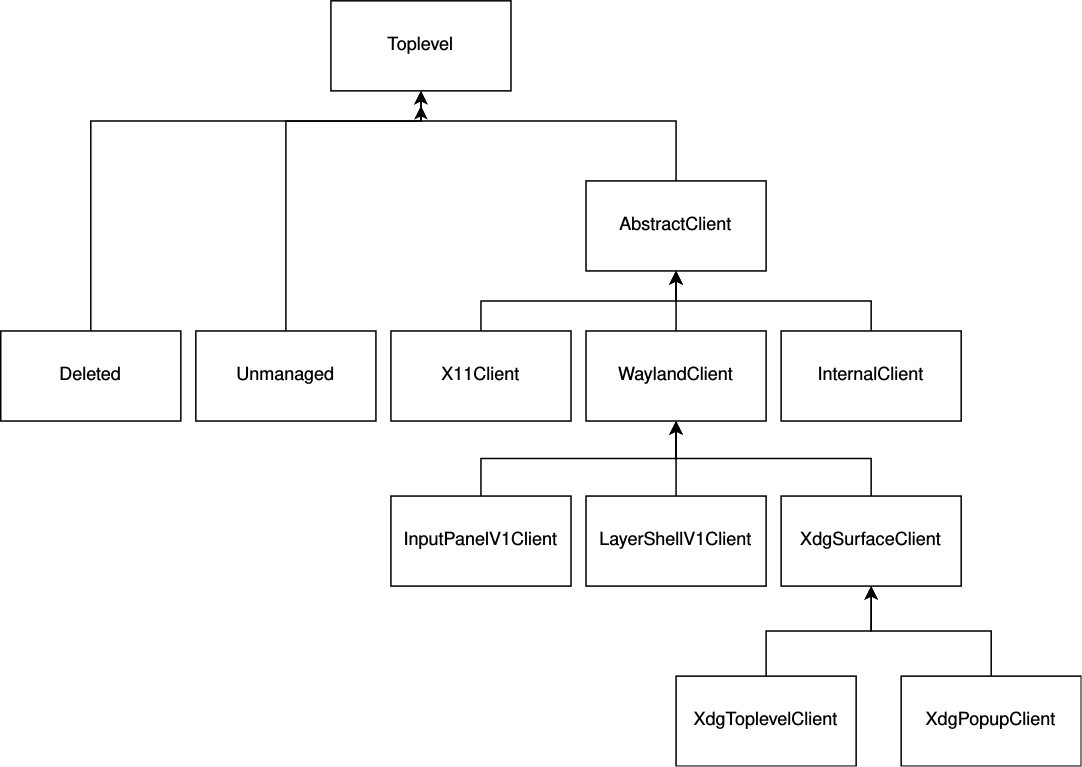
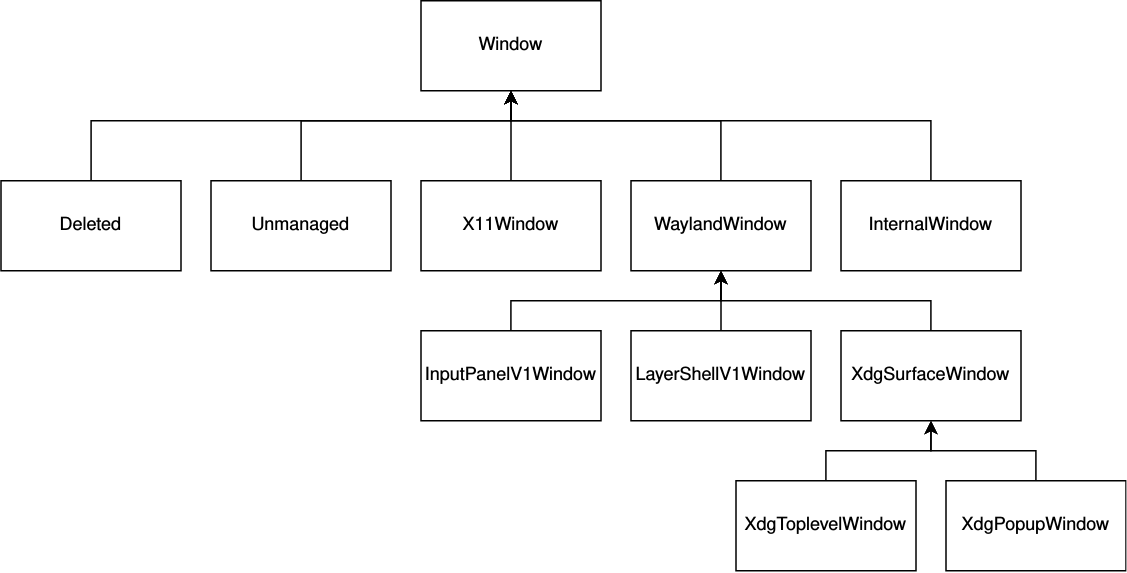
KWin used to have a strange window class hierarchy that always created confusion among new contributors.
KWin used to use the word “client” to refer to managed windows, i.e. the ones with frames, but the word “client” means a totally different thing in the Wayland world, it represents the other endpoint connected to the compositor, e.g. an application. The word “toplevel” also means different things in KWin and the xdg-shell protocol, which is used by practically all Wayland applications to create “normal” windows and popups.
Toplevel and AbstractClient classes were merged into the base Window class with a far more intuitive name. That makes the class hierarchy simpler, and hopefully removes an obstacle for new contributors.
fbdev backend was dropped
The fbdev backend was in a bit-rotten state. With the emergence of simpledrm kernel driver, we decided to drop the fbdev in favor of the DRM backend, which is actively maintained.
Closing words
5.25 is going to be the biggest release by the scale of changes within recent years, which is both great and terrifying, so it’s more than ever important that as many as possible people give us feedback about the upcoming beta. Please join us at https://community.kde.org/Schedules/Plasma_5_BetaReviewDay, which is going to be held on May 26th in https://webchat.kde.org/#/room/#plasma:kde.org, to help us to make this release smooth and amazing. 🙂
It perhaps comes as no surprise that handling window position (or geometry, in general) is one of the most important responsibilities of the window manager. While it may look a very trivial task at quick glance, unfortunately, it’s not like that. In this blog post, I will describe how KWin/Wayland manages window geometry, which can be hopefully useful to people wishing to understand how KWin works.
Warning: that’s a bit technical blog post and requires some knowledge of KWin’s internals.
X11
So, let’s start off with an easy case. On X11, if the window manager wants to move or resize a window, it simply makes an XConfigureWindow() call and that’s it, the window manager doesn’t wait for the client to repaint the window.
While things look simple and obvious from the window manager’s perspective, the compositing manager may have troubles coping with that. For example, if a window is resized, but the application hasn’t repainted it yet and the compositing manager wants to perform compositing, what should be painted in a newly exposed region of the window? Without any synchronization between the compositing manager and the application, you will most likely see noise or other types of visual artifacts. Fortunately, it’s possible to alleviate the resizing issues by using the _NET_WM_SYNC_REQUEST protocol if the window manager is also a compositing manager, which is the case with KWin.
With the _NET_WM_SYNC_REQUEST, the client has to indicate that it’s willing to participate in that protocol by listing _NET_WM_SYNC_REQUEST in the WM_PROTOCOLS property and storing the id of XSync counter in the _NET_WM_SYNC_REQUEST_COUNTER property that will be used for synchronization between the window manager and the client.
The window manager will send the client a _NET_WM_SYNC_REQUEST client message with a sync counter value that the client has to put in _NET_WM_SYNC_REQUEST in order to indicate that it’s done handling resize.
While it allows the window manager to avoid flooding the client window with resize requests and the compositing manager to “freeze” the window until it’s repainted, it does nothing to help with synchronizing compositor’s GPU commands with the app’s GPU commands, which can still result in “noisy” resize.
KWin uses the _NET_WM_SYNC_REQUEST protocol only during interactive resize and to determine when it can start painting the window’s first frame. In the remaining cases, e.g. changing window’s maximize or fullscreen mode, a ConfigureNotify event will be sent to the client window and the window will be painted on the screen without any synchronization.
Wayland
Wayland has no single window type like on X11, instead a wl_surface object is given a role that indicates how the surface should be mapped or how it can be interacted with. The surface role defines how the surface can be resized. In this blog post, I will describe how xdg-toplevel surfaces are resized because they are used to build regular application windows.
In order to resize a window, the compositor has to send the client an xdg_toplevel.configure event indicating the desired window geometry size. Depending on the window state, the client should either obey the size in the configure event or treat the size as the maximum size. For example, if the window is maximized, the window must be repainted with the same exact size as in the configure event; if the window is being interactively resized, the window can be repainted at a smaller size to account for geometry constraints, for example aspect ratio. The window will be repainted with the new size after the client acknowledges the configure event and provides a buffer with the new size.
The fact that the compositor can send the maximum window geometry size in a configure event is unorthodox. On X11, the window manager knows for sure where the window will land after XConfigureWindow(), but on Wayland, the compositor only has a rough estimate what the geometry will be after the configure event is acknowledged and a new buffer is provided. It takes a while to get used to such a model.
For every window, KWin maintains four geometries – move resize geometry, frame geometry, client geometry, and buffer geometry. The last three geometries have already been described in the CSD support in KWin post. The move resize geometry is used only to resize or move the window.
In order to help better understand how all four geometries work together, let’s consider that a window needs to be resized to (400×300). The first step that has to be taken is to change the move resize geometry’s size to (400×300). After that, a configure event will be sent with the new size. Note that the other three geometries are left unchanged, they will be updated only after the client provides a new buffer. It’s worth pointing out that the frame geometry can be different after resize, for example it can be (300×300) if 1:1 aspect ratio is forced.
What if you want to maximize a window? Two things should happen – the window has to be moved to the top-left corner of the work area and it should be resized so its size matches the work area size. The simplest way to implement it would be to move the window immediately to the target position without waiting for an acknowledgement from the client, and resize the window after a new buffer is provided. It’s easy to implement, but if there needs to be a smooth transition from the normal state to the maximize state, such an animation won’t look good. In order to fix it, the window needs to be moved and resized at the same time when a new buffer is provided.
So, just put the window position in configure events, easy, right? Well, not really. What should happen if the user wants to move the window while there’s a pending move? If it’s not handled properly, the older window position from the configure event can override the newer window position.
That problem is solved by adding a special flag to every configure event that indicates whether it affects the window position and amending pending configure events (unsetting the ConfigurePosition flag) if the window needs to be moved immediately
There are three functions to change the geometry of a window – move(), resize(), and moveResize(). Neither function is interchangeable because each of them has a specific semantic meaning. For example, moveResize() indicates that the window has to be moved and resized in one atomic operation, while move() says that the window has to be moved to the given position now regardless of whether there are pending moves.
There’s still one tiny issue. If the window is resized by dragging its top-left corner, the bottom-right corner should remain static. In case the window has custom geometry constraints, the window can bounce during resize if its bottom-right corner is not snapped properly. Similar to handling of pending moves, this issue is solved by adding more information to configure events so KWin can calculate correct frame geometry when a new buffer is committed.
There are two new things in the configure event – the bounding rectangle and the gravity. The bounding rectangle is the same as the move resize geometry. The gravity indicates the direction in which the geometry changes during resize. If the window is resized by dragging its top-left corner, the gravity will point in the top-left direction, i.e. only the top-left window corner can move. The bounding rectangle is needed to compute how much the frame geometry has to move so its bottom-right corner is static.
Just to recap, if a window needs to be resized, the first thing that will happen is that the move resize geometry size will be updated and a configure event will be sent to the client. After the configure event is acknowledged and a new buffer is provided, kwin will compute the new frame geometry, client geometry, and buffer geometry based on the information stored in the configure event.
If a window needs to be moved immediately, the move resize geometry position will be updated. All pending configure events will be amended so they don’t have the ConfigurePosition flag set and, finally, the position of the frame geometry, the client geometry, and the buffer geometry will be updated to the new position.
And that’s all I have for today. Hope this was useful.
There is one thing that annoys me a bit and that’s inconsistent font rendering in Qt and GTK applications.
kate (Qt)gedit (GTK)
The most distinctive characteristic of font rendering in Qt applications is that glyphs look thicker. Some people may argue that macOS-style font rendering is the worst one but after using Plasma for a long time, I’m used to that style of font rendering and would like fonts to look the same regardless of the underlying toolkit.
After digging though some code, I’ve discovered that Qt enables stem darkening by default in its freetype font engine. With stem darkening, glyphs are embolden to improve readability. And, indeed, after putting export FREETYPE_PROPERTIES="cff:no-stem-darkening=0" in my profile scripts, the glyphs look a bit thicker in non-Qt applications.
Note that fonts can still look differently regardless of whether stem darkening is enabled. For example, text must be rendered with linear alpha blending and gamma correction and not all toolkits do that properly.
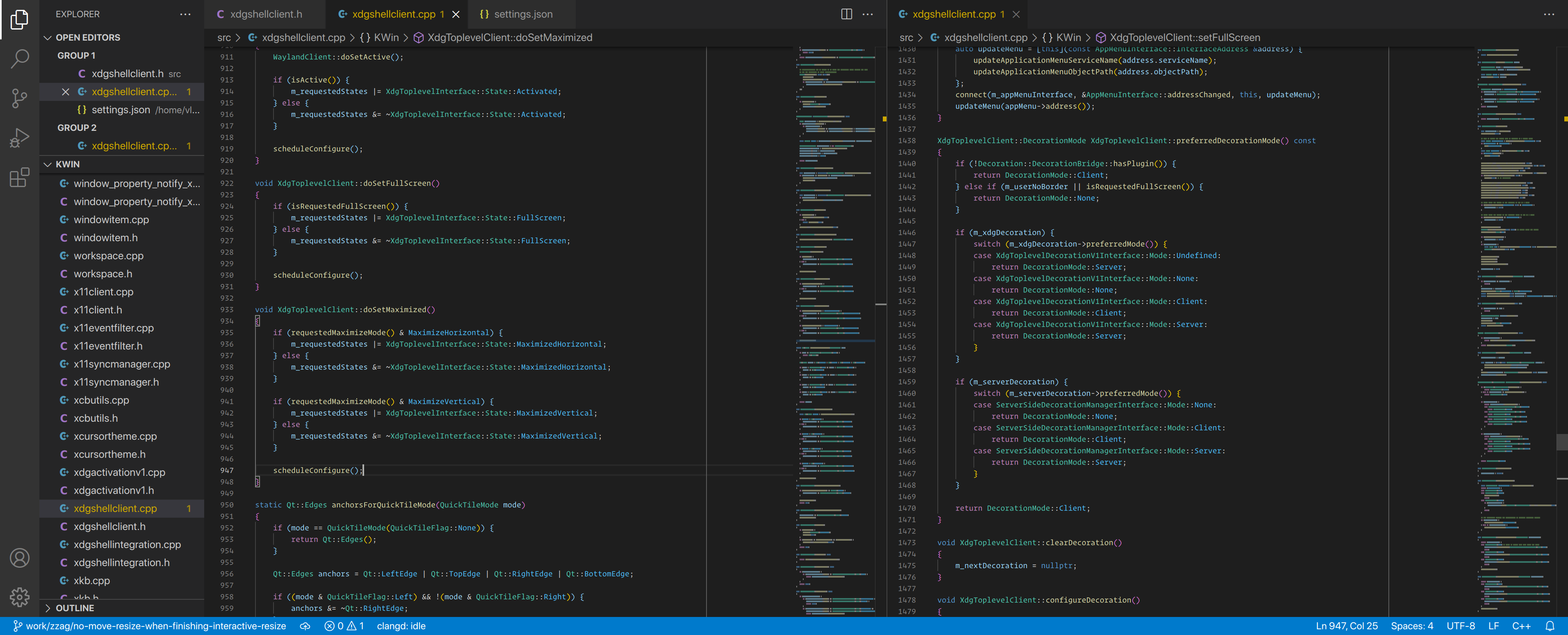
To wrap this up, I ran Visual Studio Code with and without stem darkening to see if it makes any difference.
Visual Studio Code (Skia) w/o stem darkeningVisual Studio Code (Skia) w/ stem darkening
At quick glance, both screenshots look the same. However, after taking a closer look, you can notice that glyphs in the second screenshot are more brighter and thicker than in the first screenshot (just like how it would look in a Qt application).
Conclusion
The fact that Qt enables stem darkening regardless of user preferences caught me by surprise. Relying fully on system and user preferences would minimize inconsistencies and give the user more control over their machine. Either way, if you happen to use regularly applications that are built using Qt and GTK or any other toolkit, enabling stem darkening by setting the FREETYPE_PROPERTIES="cff:no-stem-darkening=0" environment variable is a good way to achieve slightly more consistent font rendering. Note that there can be inconsistencies even if all applications use the same freetype options because it still matters how toolkits perform alpha blending, etc.
If your background includes game development, the concept of a scene should sound familiar. A scene is a way to organize the contents of the screen using a tree, where parent nodes affect their child nodes. In a game, a scene would typically consist of elements such as lights, actors, terrain, etc.
KWin also has a scene. With this blog post, I want to provide a quick glimpse at the current scene design, and the plan how it can be improved for Wayland.
Current state
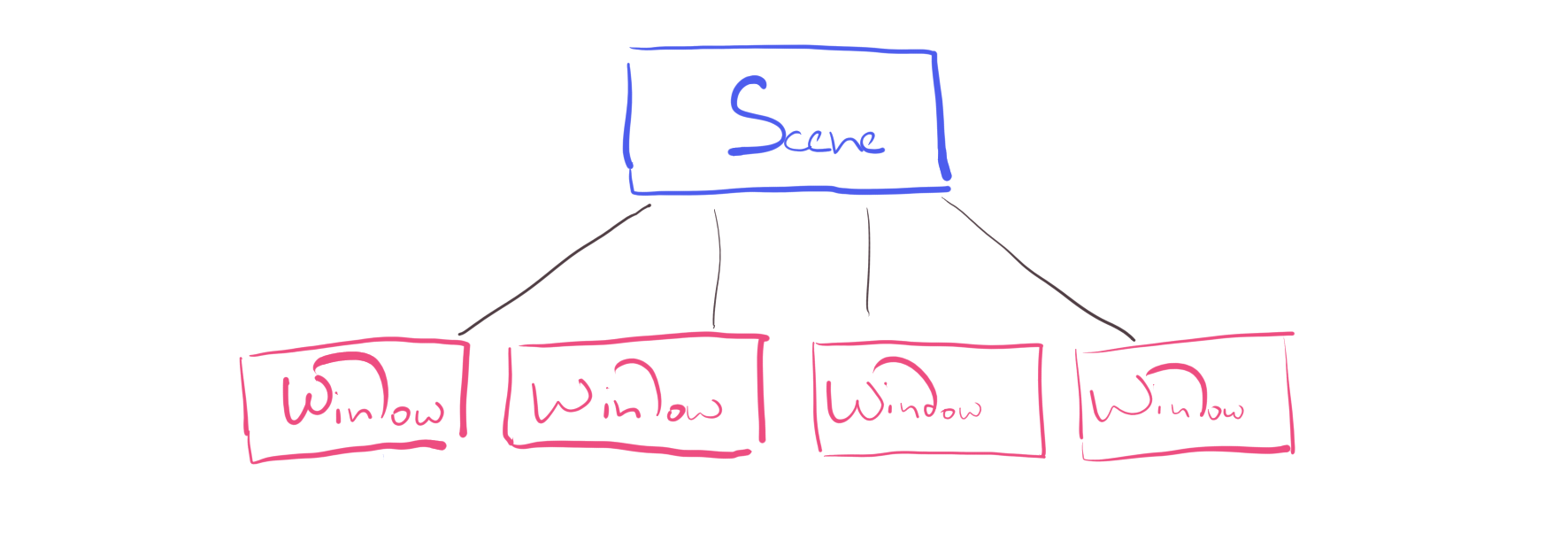
Since compositing functionality in KWin predates Wayland, the scene is relatively simple, it’s just a list of windows sorted in the stacking order. After all, on X11, a compositing window manager only needs to take window buffers and compose them into a single image.
With the introduction of Wayland support, we started hitting limitations of the current scene design. wl_surface is a quite universal thing. It can used to represent the contents of a window, or a cursor, or a drag-and-drop icon, etc.
Since the scene thinks of the screen in terms of windows, it needs to have custom code paths to cover all potential usages of the wl_surface interface. But doing that has its own problems. For example, if an application renders cursors using a graphics api such as OpenGL or Vulkan, KWin won’t be able to display such cursors because the code path that renders cursors doesn’t handle hardware accelerated client buffers.
Another limitation of the current scene is that it doesn’t allow tracking damage more efficiently per each wl_surface, which is needed to avoid repainting areas of the screen that haven’t changed and thus keep power usage low.
Introducing scene items
The root cause of our problems is that the scene thinks of the contents of the screen in terms of windows. What if we stop viewing a window as a single, indivisible object? What if we start viewing every window as something that’s made of several other items, e.g. a surface item with window contents, a server-side decoration item, and a nine-tile patch drop shadow item?
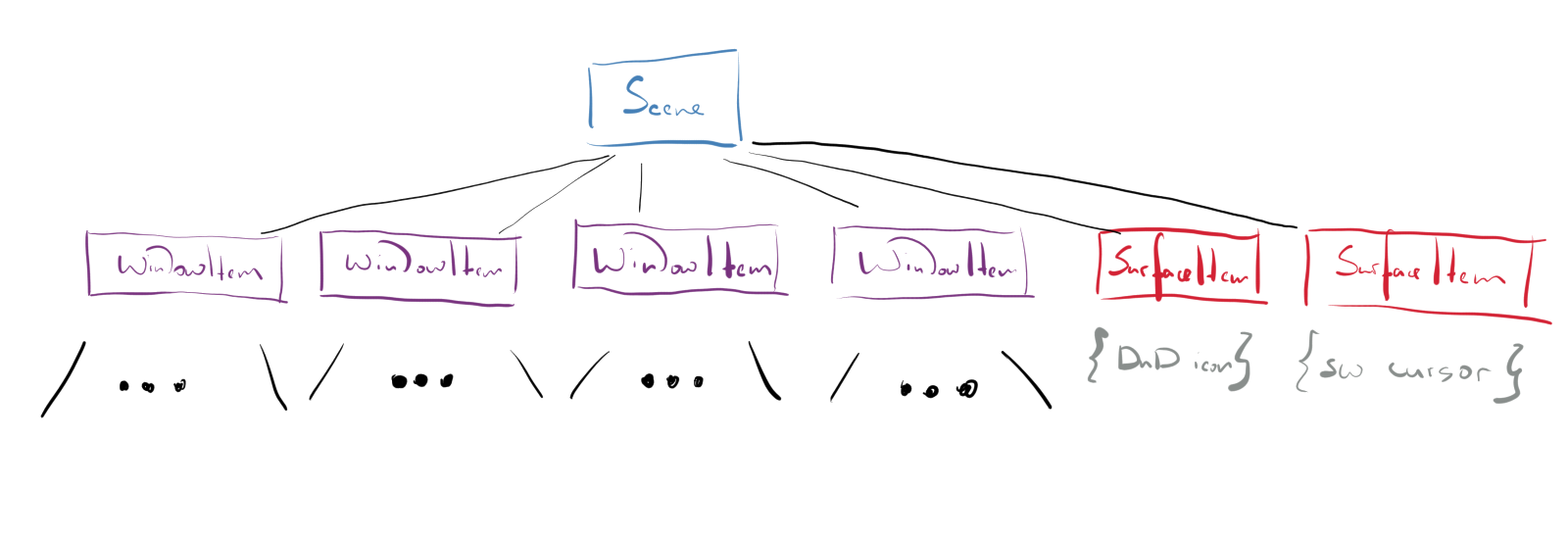
A WindowItem is composed of several other items – a ShadowItem, a DecorationItem, and a SurfaceItem
With such a design, the scene won’t be limited only to windows, for example we could start putting drag-and-drop icons in it. In addition to that, it will be possible to reuse the code that paints wl_surface objects or track damage per individual surface
Besides windows, the scene contains a drag-and-drop icon and a software cursor
Another advantage of the item-based design is that it will provide a convenient path towards migration to a scene/render graph, which is crucial for performing compositing on different threads or less painful transition to Vulkan.
Work done so far
At the end of March, an initial batch of changes to migrate to the item-based design was merged. We still have a lot of work ahead of us, but even with those initial changes, you will already see some improves in the Wayland session. For example, there should less visual artifacts in applications that utilize sub-surfaces, e.g. Firefox.
The end goal of the transition to the item-based design is to have a more flexible and extensible scene. So far, the plan is to continue doing refactorings and avoid rewriting the entire compositing machinery, if possible. You can find out more about the scene redesign progress by visiting https://invent.kde.org/plasma/kwin/-/issues/30.
Conclusion
In short, we still have some work to do to make rendering abstractions in KWin fit well all the cases that there are on Wayland. However, even with the work done so far, the results are very promising!
Warning: The proposed workaround in this blog post might be rendered unnecessary in the future.
Out of the box, Firefox with client-side decorations doesn’t look good because captions in inactive tabs blend with the background.
Firefox with Breeze GTK theme
Fortunately, this issue can be easily fixed by adding a style rule in userChrome.css file. First of all, you need to enable the userChrome.css functionality if you run Firefox 69 or later. Go to about:config page, and set toolkit.legacyUserProfileCustomizations.stylesheets to true.
Next, open the profile directory and create userChrome.css file in a sub-directory named “chrome.” If there is no “chrome” sub-directory, create one. In case you don’t know where the profile directory is, open about:support and click the “Open Directory” button next to “Profile Directory.”
Even though the userChrome.css functionality hasn’t been officially deprecated, it’s still better to avoid using it, but as a short-term solution, it’s good enough. Ideally, this minor issue should be fixed upstream so everything “just works” out of the box and no hacks are needed.
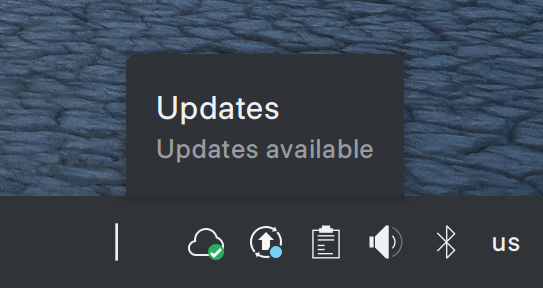
As an Arch Linux user, I find it very inconvenient that pkcon refresh must be run every time after sudo pacman -Syu in order to hide the update notifier in the system tray
Fortunately, there is a simple solution for this problem. Create 90-refresh-packagekit.hook file in /etc/pacman.d/hooks/ with the following contents